Use views and filters to find tickets
Switch between ready-made views, narrow a list with filters, and open the agent and team queues.
The Tickets page lists every ticket. A view decides which ones you see.
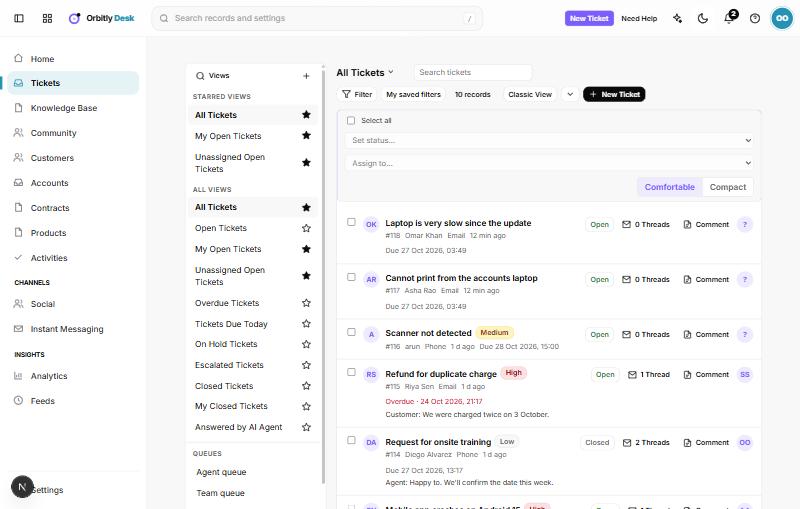
Pick a view
The panel on the left lists views under STARRED VIEWS and ALL VIEWS. Ready-made views include:
- All Tickets, Open Tickets, My Open Tickets
- Unassigned Open Tickets
- Overdue Tickets and Tickets Due Today
- On Hold Tickets and Escalated Tickets
- Closed Tickets and My Closed Tickets
- Answered by AI Agent
Choose the star beside a view to keep it under STARRED VIEWS. Use the search box above the list to find tickets by what they say.
Filter a view
- Choose Filter above the list. A filter panel opens on the left of the list.
- Open the + Add filter… menu and pick a field, such as Status or Priority. A few special filters, like Tags, are at the top of the menu.
- Pick an operator, then fill in the value. The operators depend on the field: text fields offer is, isn't, contains, starts with and is empty; dropdown fields offer is and isn't; number fields offer =, <, > and between; date fields offer on, before, after, between, today, this week and in the last N days.
- Add up to 5 conditions. The ticket must match all of them. Remove one with the close button beside it.
- Choose Apply filter. Choose Clear to remove the conditions.
To keep a set of conditions, choose + (Create Custom View) in the views panel. Your saved views appear in My saved filters and in the view list.
Change how the list looks
- Tickets show as cards by default. Choose Classic View for a table.
- Choose the arrow next to it to sort by Created Time, Modified Time, Due Date, Priority or Status.
- The footer shows the count and page. Use the arrows to move between pages.
Queues
Under QUEUES in the left panel:
- Agent queue shows open tickets in a column per agent, plus Unassigned, soonest due first.
- Team queue shows the same per department.
- Tags lists tickets by tag.
- Scheduled replies lists replies waiting to be sent.
Was this not what you needed? Contact support or search again.