Write a knowledge base article
Write, review and publish a help article so customers can solve problems without opening a ticket.
Published articles appear in your customer help center and in the help widget. The AI agent also uses them to answer routine tickets. See Set up your customer help center.
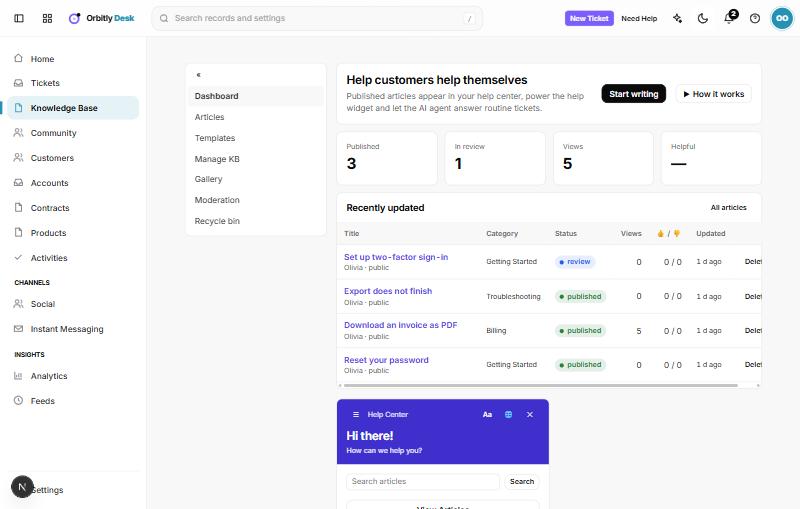
Write an article
- Open Knowledge Base in the sidebar and choose Start writing. You can also go to Articles and choose New article.
- Enter a Title. Describe the problem or question the way a customer would say it.
- Write the answer in Article. Short paragraphs and numbered steps read best.
- Choose a Category, or leave it as Uncategorised.
- Under Visible to, choose who can read it: Everyone, Signed-in customers or Agents only.
- Add Tags if you want, separated by commas.
- Choose Save.
If you have templates, the new-article page offers them as a starting point. Tick Save as a template to turn an article into one; templates are listed under Templates.
Move it from draft to published
Set Status to Draft, Review or Published, or use the buttons at the top of a saved article: Send for review, Publish, Expire and Move to draft. Customers only see an article once it is Published. Choose View in help center to see it as a customer would.
Articles waiting for review are collected under Moderation.
Keep it organised
- Manage KB lists categories. Add one with Category name, an optional Short description, and Add category.
- Articles can be filtered by All, Draft, Review, Published and Expired, and searched.
- Delete moves an article to the Recycle bin, where you can Restore it.
Each article shows its views and how many readers found it helpful, so you can see which ones work.
Was this not what you needed? Contact support or search again.