Get started with Desk
See where things are in Orbitly Desk and do the first three things that get your support team working.
Orbitly Desk is where your team answers customers. Every question, by email or from your help center, becomes a ticket. Agents reply to tickets, keep notes for each other and close them when they are done.
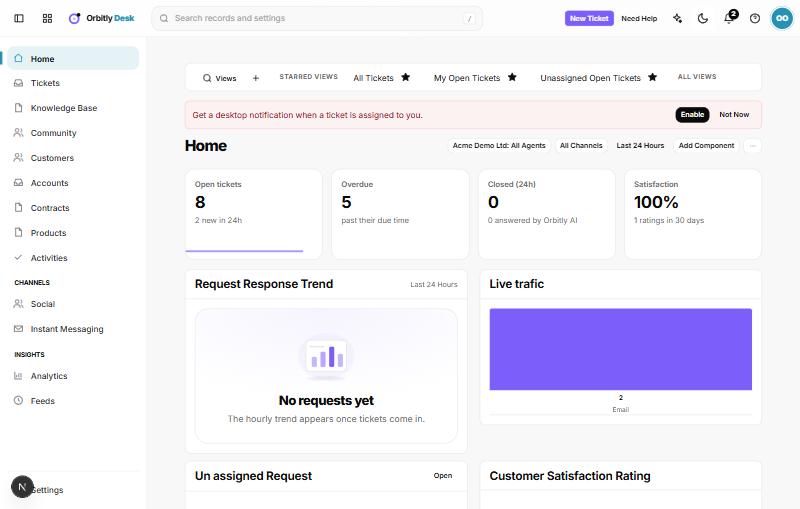
Find your way around
The left sidebar has the main places:
- Home shows open and overdue tickets, tickets closed in the last 24 hours, customer satisfaction, and which agents are online.
- Tickets is the list of every ticket, with views, filters and queues.
- Knowledge Base holds the help articles your customers read.
- Community is for forums and moderation.
- Customers, Accounts, Contracts, Products and Activities keep the records tickets point to.
- Social and Instant Messaging connect other channels.
- Analytics and Feeds show how the team is doing.
- Settings opens Setup. Only admins see Setup; everyone else sees their own settings.
Do these three things first
- Add a support channel. In Setup, open Email under Channels. Forward your support mailbox to the forward-to address shown there, and add the address under Support addresses. Mail sent to it then arrives as tickets.
- Invite your agents. In Setup, open Agents under User management. The page is titled Users and has the tabs Active, AI Agents, Inactive, Invited and Deleted. Choose New User, fill in first name, email, Role and Profile, then choose Send invitation. Pending invitations wait on the Invited tab, where you can Reinvite or delete them. For invitations from the admin console, see Invite people to your organisation.
- Write a knowledge base article. Answers customers can find on their own mean fewer tickets. See Write a knowledge base article.
Until the first ticket arrives, Home shows a short checklist with these same steps.
Then
Was this not what you needed? Contact support or search again.