Request leave
Check your balance, send a leave request, and cancel it if your plans change.
Use the Leave page to see your days left and ask for time off.
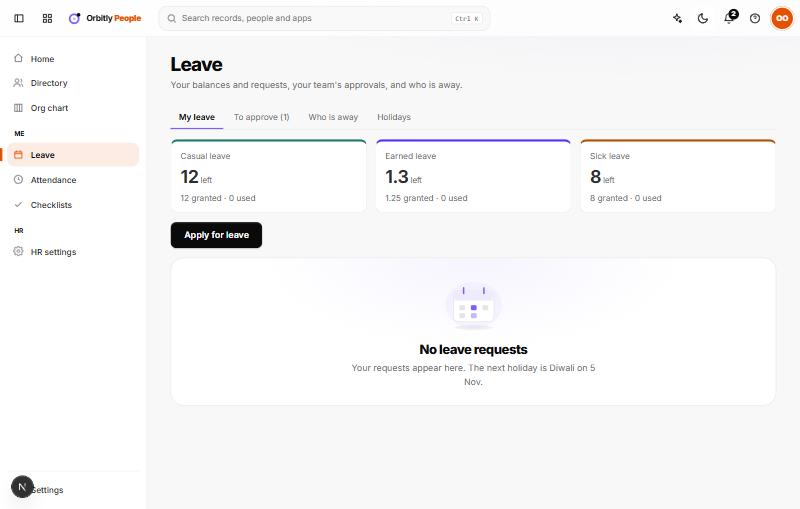
See your balance
On the My leave tab, each leave type shows how many days are left, how many were granted and used, and how many are waiting for a decision. Types with nothing granted are hidden. If you see "No leave has been granted for this year yet", ask HR.
Apply for leave
- On My leave, choose Apply for leave.
- Pick the Type. The days left are shown next to each name.
- Set From and To. For one day, leave both the same.
- If the type allows half days and you chose a single day, set Length to First half or Second half.
- Add a Reason (optional).
- Check the line under the form. It shows how many working days will be counted, not including weekends and holidays.
- Choose Send request.
Your request goes to your manager. If you have no manager, or your manager has no sign-in, it goes to HR. If there is nobody else who could approve it, it is approved automatically.
What Orbitly checks
A request is refused, with a message, when:
- all the dates are already days off;
- you already have leave on some of those days;
- a paid leave type does not have enough days left;
- the dates cover two leave years (request each part separately);
- the last date is more than 120 days after the first.
Follow it or cancel it
Your requests are listed under the balances with a status: pending, approved, rejected or cancelled. Choose Cancel on a pending or approved request that has not ended yet. You will be asked to confirm.
See holidays and who is away
The Holidays tab lists the company holidays, and Who is away shows a month calendar of approved leave.
Next: Approve or decline leave.
Was this not what you needed? Contact support or search again.