Add a contact or company
Create a contact or company by hand, and link the two together.
Contacts are the people you deal with. Companies are the organisations they work for. You can add either one by hand in a few seconds.
Add a contact
- Open Contacts in the sidebar.
- Choose + Contact. A panel opens on the right.
- Fill in First Name and Last Name. Last name is required.
- Add what you know: Title, Company Name, Email, Mobile, Work Phone, Home Phone, Mailing Address and Description.
- Check the Owner. It is you unless you change it.
- Choose Save.
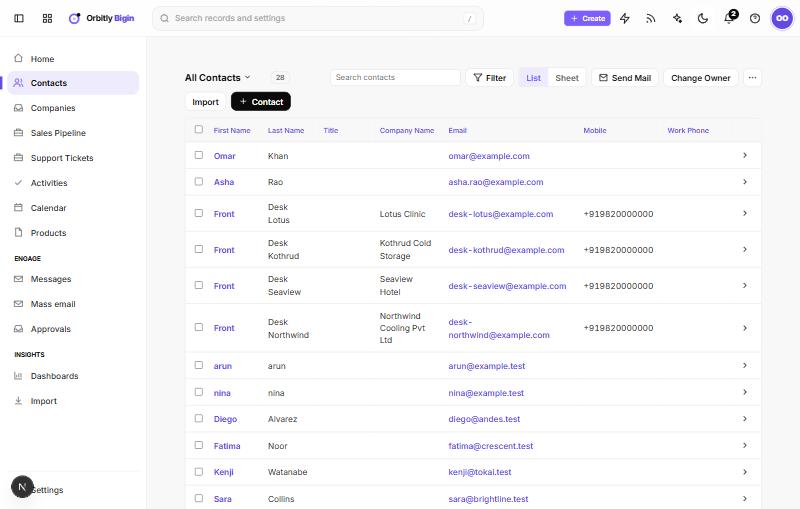
In Company Name, pick a company that already exists. Its name is then shown on the contact.
Add a company
- Open Companies and choose + Company.
- Enter the Company Name. It is required, and each company name can be used once.
- Add Phone, Website, Industry, Billing Address, Shipping Address and Description as needed.
- Choose Save.
Keep adding
On the full create page, Save and New saves the record and opens a blank form, which is handy when you have a stack of business cards.
Find and sort your records
- Type in the search box above the table to search the list.
- Choose Filter to narrow the list by field values.
- Use List and Sheet to switch how the table looks.
- Click a column heading to sort by it.
Open a record
Click a name to open the record. From a contact you can Edit, Send Mail, Call, and open the More menu, which includes Add to a pipeline. The record also keeps your notes, files, activities and emails together.
To add someone you already have in a spreadsheet, see Import contacts from a file.
Duplicates
A contact's Email must be unique. If two records end up with the same email or mobile number, open Approvals and choose the Duplicate contacts tab. Pick the record to keep and choose Merge into selected. Notes, files, activities, emails and pipeline links move to the kept record. The others go to the recycle bin.
Was this not what you needed? Contact support or search again.