Import contacts from a file
Load contacts, companies, deals and more from a CSV or Excel file, and undo it if needed.
If your customer list lives in a spreadsheet, import it instead of typing it again. You can import contacts, companies, pipeline records, products, tasks, events and calls.
Before you start
- Use a CSV or Excel .xlsx file. The first row must be the column headings.
- The file can be up to 10 MB.
- Your profile must allow importing. If it does not, the page tells you so; ask an admin.
Import a file
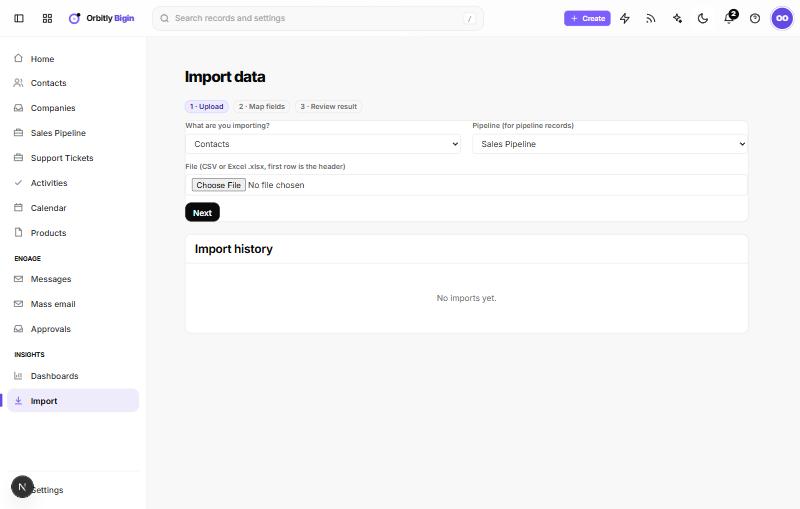
- Open Import in the sidebar. On the contacts or companies list you can also choose Import.
- Under What are you importing?, choose the kind of record, for example Contacts.
- Importing deals? Choose the pipeline under Pipeline (for pipeline records).
- Choose your file and then Next.
- In Map fields, match each Column in file to a Field. Bigin suggests matches and shows a Sample of your data. Fields marked with * are required. Choose Don't import for columns you do not need.
- Decide what happens when a row matches an existing record: Skip the row, Update the existing record, or Create a duplicate anyway.
- Choose Import (the button shows the number of rows).
When you import contacts, a company name in your file is linked to an existing company or a new one is created.
Check the result
You land on a page for the import that shows how many rows were Added, Updated and Skipped, any rows with problems, and the records it added. Import history at the bottom of the Import page lists every import so you can open it again.
Undo an import
Open the import from Import history and choose Undo import. Records the import created are deleted, and fields it changed are put back. You can only undo an import that completed.
After the import, see Work your pipeline to start moving deals forward.
Was this not what you needed? Contact support or search again.