Get started with Bigin
What Bigin is for, where everything sits in the sidebar, and the first three things to do.
Bigin is Orbitly's light sales app for small teams. It keeps your contacts and companies, tracks deals on a board, and reminds you what to do next.
What you see after you sign in
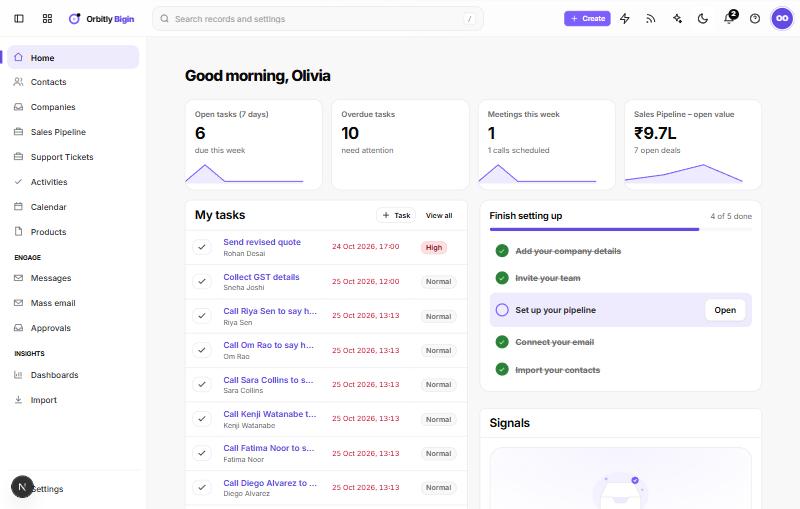
Bigin opens on Home. It greets you and shows four counts: open tasks due in the next 7 days, overdue tasks, meetings this week, and the open value of your first pipeline. Below them you get My tasks, your upcoming meetings and calls, and a small view of your pipeline.
On the right, Finish setting up lists the setup steps and ticks them off as you go. Signals shows email opens, replies, missed calls, payments and new leads. Feeds shows records assigned to you, edits to your records and mentions.
Where things are
The sidebar has three groups.
- Work: Home, Contacts, Companies, your pipelines (a new account starts with Sales Pipeline and Support Tickets), Activities, Calendar and Products.
- Engage: Messages, Mass email and Approvals.
- Insights: Dashboards and Import.
Settings is at the bottom of the sidebar. The Create button in the top bar adds a contact, company, deal, product, task, event or call from any page. Press / to jump to the search box and find records and settings.
Your first three things to do
- Bring in your people. Add one by one with Add a contact or company, or load a spreadsheet with Import contacts from a file.
- Add your first deal. Put it on the board and move it forward: see Work your pipeline.
- Plan what happens next. Create a task or schedule a call so no deal sits without a next step: see Schedule tasks, events and calls.
Want your team in Bigin too? See Invite people to your organisation.
When you are ready for more
- Send a mass email to a group of contacts.
- Build a dashboard to watch your numbers.
- Approvals holds website form submissions that wait for your decision, and lists duplicate contacts you can merge.
- Messages is for WhatsApp chats. It asks you to connect a WhatsApp Business number first.
Was this not what you needed? Contact support or search again.