Add a bank account and reconcile it
Add a bank or card account, import your statement, match each line to your books, and reconcile.
Banking is where your books meet your bank statement. You bring in the statement, tell Orbitly what each line was, and then reconcile to prove the books agree with the bank.
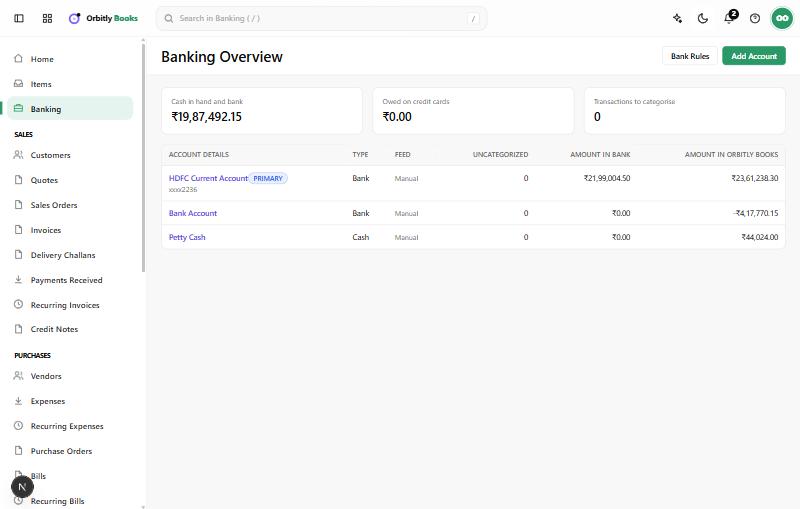
Add an account
- Open Banking and choose Add Account.
- Choose the Account Type and enter an Account Name. Account Number, Bank Name, IFSC and Description are optional.
- Choose Save.
The Banking Overview lists each account with the amount in the bank and the amount in Orbitly Books. A difference means some lines are not yet matched.
Bring in transactions
Open the account and choose Import Statement. Download the statement from your net banking as CSV, choose the file and choose Import. You can also paste the rows, choose Preview, check the column guesses and import. Lines you already imported are skipped, so overlapping dates are safe.
Pick the date order that matches your file: Day first (dd/MM/yyyy) or Month first (MM/dd/yyyy).
Match or categorize each line
On the account page, the Uncategorized tab lists lines to deal with. Other tabs are Categorized, Matched, Excluded, All Transactions and Transactions in Orbitly Books. For each line choose Categorize:
- Match pairs it with an entry already in your books, such as a payment or expense with the same amount within 7 days.
- Or pick Categorize as, an Account, an optional Contact and a Description, then Save.
- Exclude hides a line you do not want in the books. Restore brings it back.
Use Transfer Fund to move money between your own accounts. Record Expense, Vendor Payment and Customer Payment are shortcuts on the same page. You can also create Bank Rules from Banking.
Reconcile
- On the account page, choose Reconcile.
- Enter the Start Date, End Date and the Closing Balance printed on your statement for the end date.
- Choose Proceed to Reconcile.
- Tick each line that appears on your statement. The page shows Opening Balance, Cleared Balance and Difference.
- When Difference is zero, choose Reconcile below the transaction list. The button stays greyed out until the difference is zero.
Reconciliation History lists past periods. Use Continue to finish an open one, or Undo to reopen the latest one; its entries become unreconciled again.
Was this not what you needed? Contact support or search again.