Create and send an invoice
Bill a customer, email the invoice with a PDF, and follow it until it is paid.
An invoice asks a customer to pay. Once it is sent, it is recorded in your books as money owed to you.
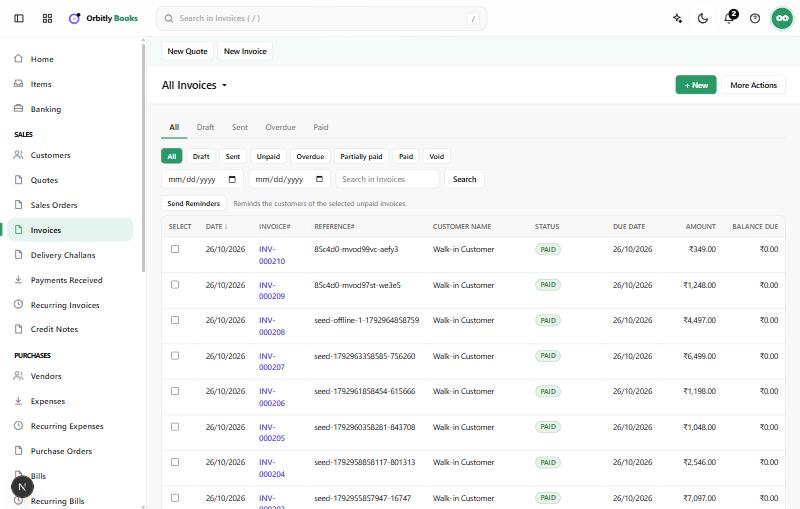
Create an invoice
- Open Invoices and choose + New. (New Invoice at the top of the page works too.)
- Choose the Customer Name. If they are not listed yet, add them first: see Add a customer.
- Check Place of Supply. It decides which GST applies, so make sure it is right for this sale.
- Leave Invoice# as it is to use the next number automatically, or type your own. Set the Invoice Date, Payment Terms and Due Date.
- In the item table, pick each Item, then set the Quantity and Rate. Choose the tax for each line under Select a Tax.
- Optionally add a discount, Shipping Charges or an Adjustment below the table, and write Customer Notes and Terms & Conditions.
- Check the totals on the right, then choose how to save.
Choose how to save
- Save as Draft keeps the invoice private. A draft is not recorded in your books and cannot be paid.
- Save and Send issues the invoice, so it is recorded in your books straight away, and then opens the email form. If you close the form without sending, the invoice stays issued but is not emailed.
- Save issues the invoice without emailing it. It is recorded in your books and waits for payment. Use it when you hand over the invoice yourself, then choose Send later if you want to email it.
Send it
On the invoice, choose Send. A form titled Email To your customer opens with To, Cc, Subject and Message filled in from your template. Leave Attach Invoice PDF ticked and choose Send. Send works on any invoice that is not void. On a draft, sending also issues the invoice.
You can also use Share for a public link, PDF/Print to download or print, or choose Share on WhatsApp, which sends a WhatsApp message with the invoice link to the customer's mobile or phone number. It needs a number on the customer, and a message is shown if it could not be sent.
After it is sent
The status shows on the Invoices list: Draft, Sent, Unpaid, Overdue, Partially paid, Paid or Void.
- Record Payment takes you to a payment form for this invoice. See Record a payment you received.
- Under More, Send Reminder emails the customer about an unpaid invoice. Stop Reminders turns automatic reminders off for it.
- On the Invoices list, tick invoices and choose Send Reminders to remind several customers at once.
- Create Credit Note starts a credit note for this invoice.
- Write Off treats the remaining balance as bad debt. Cancel Write Off reverses it.
- Void cancels an invoice but keeps it in your records with a zero balance. Use it instead of deleting a sent invoice.
- Delete removes the invoice for good and cannot be undone.
Start from a quote
On a quote, choose Convert to Invoice. Quotes have their own list under Quotes, and can be marked as accepted or declined from the More menu.
Edit later
Choose Edit on the invoice. Changing a sent invoice changes the amount your customer owes, so tell them if you do.
Was this not what you needed? Contact support or search again.