Run a report
Open a report, set the dates, export it, save your own version and keep favourites.
Reports show your books in summary: profit and loss, balance sheet, cash flow, who owes you and more. They are worked out from the transactions you have recorded, so record and reconcile first.
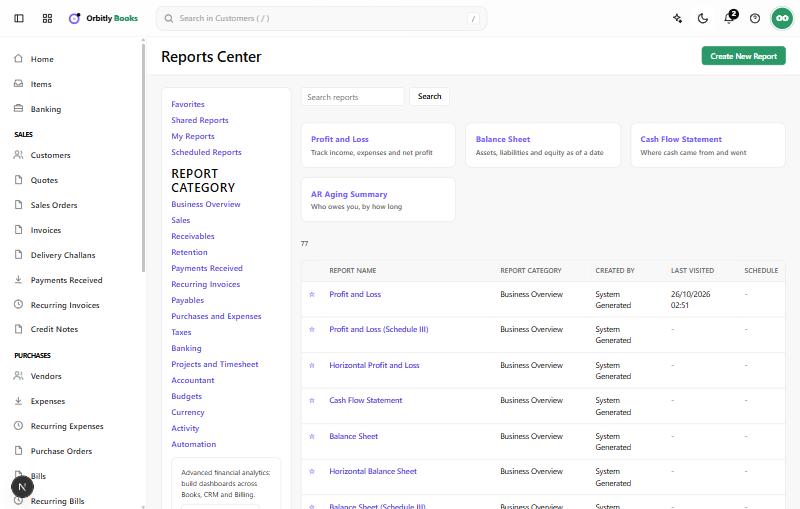
Open a report
- Choose Reports in the sidebar. The Reports Center opens.
- Pick a report from the cards at the top (such as Profit and Loss, Balance Sheet, Cash Flow Statement and AR Aging Summary), or search by name in Search reports.
- To browse, choose a category under REPORT CATEGORY, such as Business Overview, Sales, Receivables, Payables, Taxes or Banking.
Set what it covers
Open a report and the bar above it has the From and To dates, or a single As of date for reports that show one date. Some reports add an Account or Budget list. Only Profit and Loss, Balance Sheet and Cash Flow Statement have Compare with, with No comparison, Previous period and Previous year. Choose Run Report to update it.
Export or print
Choose Export and pick CSV, XLS, XLSX or PDF. Print opens a printable page.
Keep the ones you use
- Open a report and choose Add to Favorites at the top right. It then reads Favorite. Find your favourites under Favorites on the left of the Reports Center.
- Choose Create New Report, then pick a report to Start from, give it a Report Name and dates, and choose Save and Run. Your saved reports are listed under My Reports.
Shared Reports and Scheduled Reports are in the same list. Scheduled Reports has no entries yet, because a report cannot be scheduled from the report page.
Related
For customers who owe you, see Create and send an invoice. Reports that look wrong often mean a bank line is not yet matched: see Add a bank account and reconcile it.
Was this not what you needed? Contact support or search again.