Book a room
See which rooms are free and reserve one, either from Room booking or while you create an event.
Room booking shows every room in your organisation for one day, so you can see what is free before you reserve it.
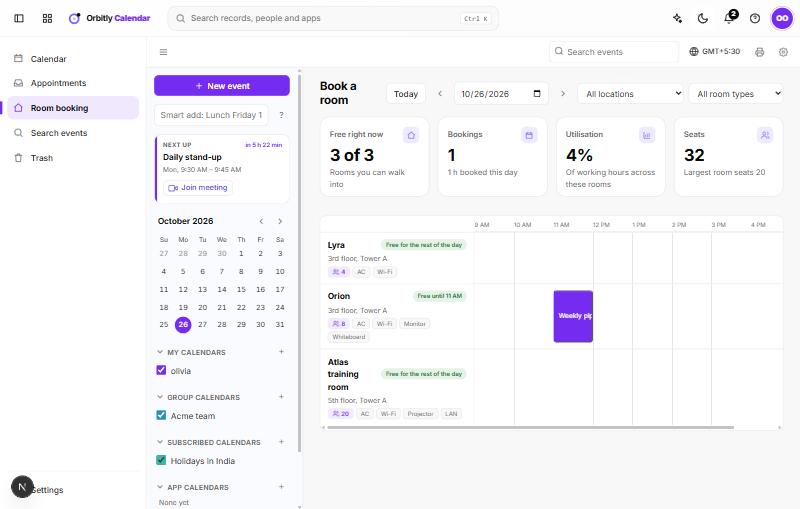
Find a free room
- Open Room booking in the left menu.
- Choose the day with the date box, the arrows, or Today.
- Narrow the list with All locations and All room types. Room types are meeting room, conference room, training room and equipment.
- Read the cards at the top. For today, Free right now says how many rooms you can walk into. The other cards show bookings, how much of the working day is booked, and seats.
Each room has a row with its floor and building, how many people it seats, and its features such as Wi-Fi or a projector. A label tells you whether it is free for the rest of the day, free until a certain time, or busy until a certain time. The timeline shows existing bookings as coloured blocks.
Reserve a room
- Click an empty part of the room's timeline at the time you want.
- Fill in a Title, check the date and the From and To times, and add a description if you like.
- Optionally set Repeat, add participants by email address, tick Also add to my calendar (with reminders) or Add conferencing.
- Choose Book.
Tick Private (others see the room as occupied) if other people should not see what the booking is for. Use Note to the room admins for requests such as setting up the room.
To change or cancel your own booking, click its block on the timeline. You can edit it, or choose Cancel booking.
Book a room from an event
In the event form or the quick box that opens when you click the grid, choose a room in the Room list. It shows the seats and location next to each name. See Create an event.
In the form, the Manage participants & check availability tab also shows each chosen room's busy times alongside your guests.
If you see "No rooms yet"
Rooms are set up by an organisation admin. Admins see a Manage rooms link in the calendar panel, where they add branches, buildings, floors and rooms, set booking limits and view reports. Ask an admin if the page is empty.
Was this not what you needed? Contact support or search again.