Get started with Calendar
Find your way around Calendar and do the three things most people do first.
Orbitly Calendar keeps your events, meetings, rooms and appointment requests in one place. You see your own calendars, calendars shared with you, and any calendars you have subscribed to, all on the same grid.
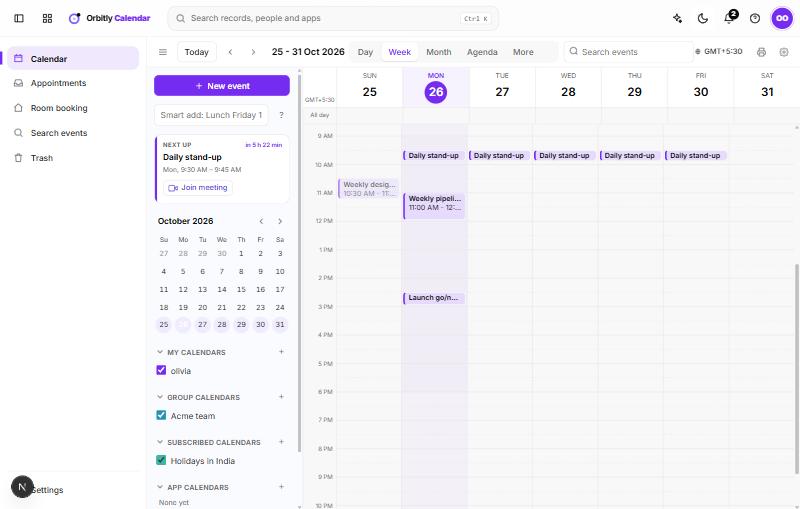
Where things are
The left menu has six places:
- Calendar is the main grid. Switch between Day, Week, Month and Agenda from the toolbar.
- Appointments lists your booking pages and the requests waiting for you. See Share a booking page.
- Room booking shows which rooms are free. See Book a room.
- Search events opens a results page. You can also type in the Search events box in the toolbar. Search looks at titles, locations, descriptions and participants.
- Trash holds deleted events for 30 days. Choose Restore next to an event to bring it back.
- Settings is also behind the gear icon in the toolbar.
Next to the grid, the calendar panel shows a Next up card with a live countdown (and a Join meeting button when the event has a meeting link), a small month calendar, and your calendar lists. Tick or untick a calendar to show or hide its events.
Your first three steps
- Add an event. Type something like Lunch Friday 1pm in the Smart add box, or choose New event. See Create an event.
- Pick the view you like best. See Switch between Day, Week, Month and Agenda.
- Invite someone and add a meeting link. See Invite people and join a meeting.
Good to know
- Times are shown in your time zone. Change it with the time zone button in the toolbar, which shows your current zone's short name.
- Print the current view with the printer icon in the toolbar.
- To add other calendars, share yours or subscribe to a holiday calendar, see Add, subscribe to and share calendars.
- Calendar is one of the Orbitly apps. To add people to your organisation, see Invite people to your organisation.
Was this not what you needed? Contact support or search again.