Share a booking page and answer requests
Publish a page where people can ask for time with you, then confirm or decline what comes in.
A booking page lets people outside your organisation pick a free time and send you a request. Nothing goes on your calendar until you confirm it.
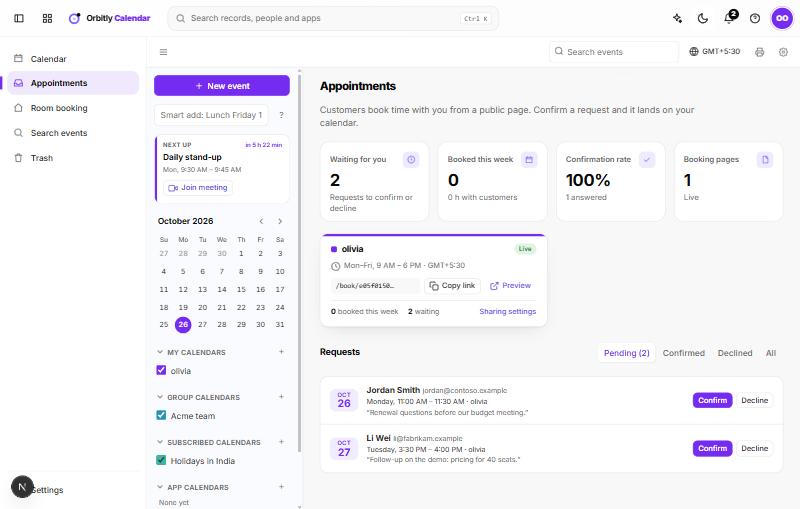
Create your booking page
- Open Appointments in the left menu.
- If you have no page yet, choose Create a booking page. This sets your main calendar's public access to free/busy, so visitors can see when you are free.
- Your page appears as a card marked Live, with your working days and hours.
Share the link
On the card, choose Copy link and send it to the people you want to hear from. Choose Preview to see the page the way a visitor will.
Visitors choose a date, pick one of the half-hour times that is not already taken on your calendar and has not passed (the times are shown in their own time zone, from 9 AM, with the last one starting at 5:30 PM), then enter their name, email and an optional message and choose Send request.
To put the booking form on your own website, open the ... menu next to the calendar in the calendar panel, choose Share, publish and embed, and use the Appointment form tab. It has HTML you can copy.
Answer requests
Each new request sends you an email and a notification. Under Requests, the tabs Pending, Confirmed, Declined and All sort them. The box at the top, Waiting for you, counts what still needs an answer.
- Choose Confirm to add the meeting to your calendar. The person is invited by email.
- Choose Decline to turn it down. They get an email saying you could not accept that time and asking them to pick another.
Confirmed requests show an Open event button that takes you to the event.
Keep an eye on it
The cards at the top show how many requests are waiting, how many hours you are booked with customers this week, your confirmation rate, and how many booking pages are live. Sharing settings on the card opens your calendar settings.
See also Create an event and Add, subscribe to and share calendars.
Was this not what you needed? Contact support or search again.