Add a lead
Create a lead by hand, then find it again with views, search and filters.
A lead is a person or company that might become a customer. Add one as soon as you hear about them.
Create a lead
- Open Leads and choose Create Lead. On Home, Create Lead is at the top right.
- Enter Last Name and Company. These two are required.
- Add what you know: Salutation, First Name, Title, Email, Phone, Mobile, Website.
- Set Lead Source (for example Trade Show or Web Download), Lead Status, Industry and Rating.
- Check the Lead Owner. It is you unless you change it.
- Choose Save, or Save and New to add another straight away. Submit also saves the lead.
An email address can belong to only one lead. Lead Score is filled in by scoring rules and cannot be typed in.
Find leads again
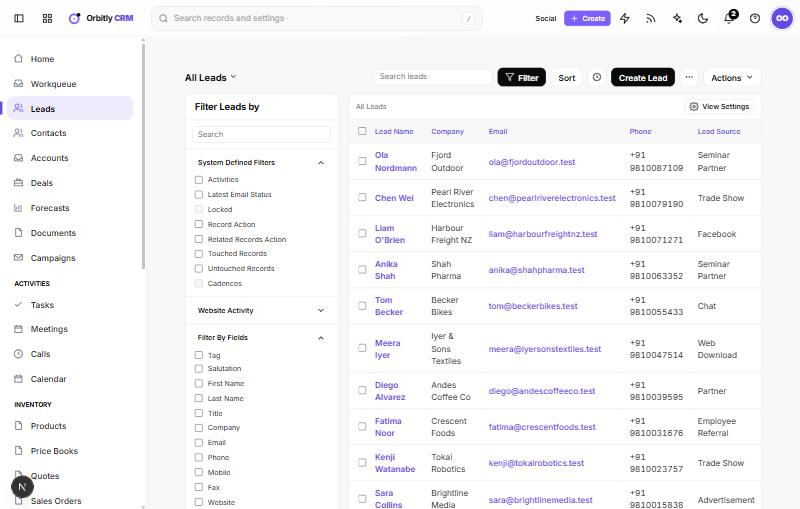
- The view picker at the top left (it starts as All Leads) switches views such as My Leads, New This Week, Recently Created, Not Yet Viewed and Untouched Records.
- Type in Search leads to search by text.
- Filter opens the Filter Leads by panel. Tick system filters, or pick fields such as Lead Source and set conditions.
- Sort orders the list by any field, up or down.
- View Settings changes which columns show.
Work on many leads at once
Tick the boxes next to the leads, then open Actions:
- Mass Update changes a field on all of them.
- Change Owner hands them to someone else.
- Add Tags and Remove Tags label them.
- Export Selected downloads them.
- Mass Delete moves them to the recycle bin.
Next
- Got a spreadsheet of leads? See Import records from a file.
- Ready to qualify one? See Convert a lead.
Was this not what you needed? Contact support or search again.