Track targets with forecasts
Set a target for each salesperson and see achieved, committed and the gap for a month or quarter.
A forecast compares each salesperson's target with what they have won and what is likely to close in the same period.
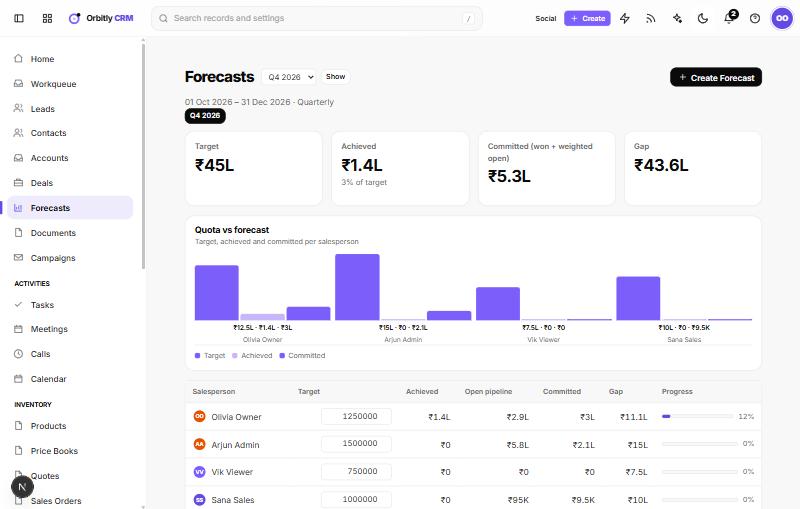
Read a forecast
Open Forecasts. Pick a period from the menu at the top and choose Show, or use the period buttons below it. The line under the title gives the dates and whether the period is Monthly or Quarterly.
Four cards sum up the team:
- Target: the total of everyone's targets.
- Achieved: deals won in the period, with the percentage of the target.
- Committed (won + weighted open): what you have won plus the weighted value of open deals.
- Gap: how far the team still is from the target.
The Quota vs forecast chart puts target, achieved and committed side by side for each salesperson. The table below lists Target, Achieved, Open pipeline, Committed, Gap and a Progress bar for each person.
Create a forecast
Administrators create forecasts. If you are not one, ask an admin; you will see a message to that effect when no forecast exists.
- Open Forecasts and choose Create Forecast.
- Under Forecast Period, choose Quarterly or Monthly.
- Set Starting, the first day of the period. It starts on the current quarter.
- If you have more than one pipeline, choose one under Pipeline, or leave All pipelines.
- Type each person's target in the Targets list. It is the deal amount they should close, in your company currency.
- Choose OK.
Change targets later
On a forecast, administrators can edit the Target box in each row. Choose Save targets when you are done. Everyone else sees the targets as plain numbers.
Related: Work your deals.
Was this not what you needed? Contact support or search again.