Work your deals
Create a deal, move it through the stages in list or kanban view, and create a quote from it.
Deals are the sales you are trying to win. Each deal sits in a stage of a pipeline, and the stage tells you how close it is.
Look at your deals
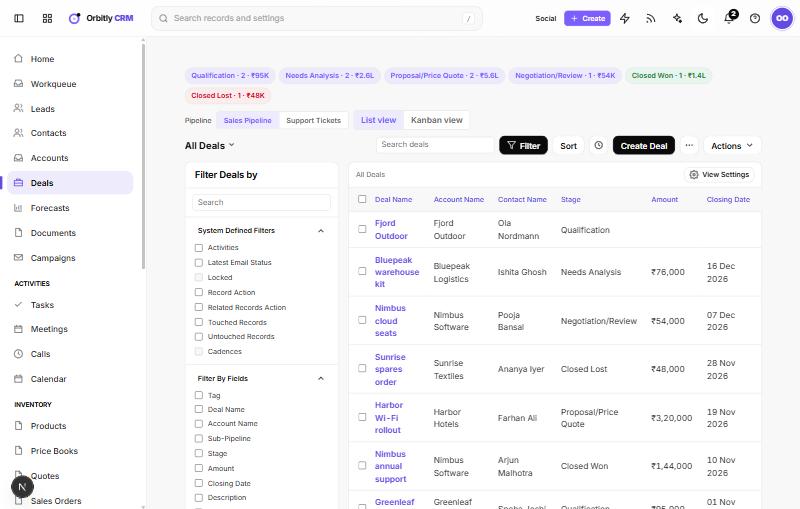
Open Deals. At the top, a row of chips shows every stage with its deal count and total amount, for example a stage with 2 deals and their combined value. If you have more than one pipeline, Pipeline switches between them.
Choose how to see the deals:
- List view (the default) is a table with the Filter Deals by panel, Sort, Actions and a view picker. Views include All Deals, My Deals, Open Deals, Won Deals, Lost Deals and Closing This Month.
- Kanban view shows one column per stage with a card per deal. The line under the search box shows how many deals are open, their worth and the weighted value.
Create a deal
- On Deals, choose Create Deal.
- Enter the Deal Name. It is required.
- Pick the Account Name and Contact Name from your records.
- Choose the Stage, and fill in Amount and Closing Date.
- Check the Deal Owner.
- Choose Save.
Converting a lead can open a deal for you: see Convert a lead.
Move a deal to the next stage
- In Kanban view, drag the card to another column. The totals update at once, and the card jumps back if the change could not be saved.
- On the deal's own page, select a stage in the stage bar at the top. It shows how long the deal has been in its current stage and the stage's probability.
Won and lost stages have their own colours. Each stage is set as open, won or lost. Stage names depend on the pipeline template: the Sales Pipeline template ends in Closed Won and Closed Lost, while others use their own names, such as Enrolled and Dropped.
Quote the customer
Open the deal and choose Create Quote. The new quote form opens with the deal filled in. After you save the quote, its page has Convert to Sales Order and Convert to Invoice.
Look after your deals
- Tick several deals in the list, then use Actions to Mass Update, Change Owner, Add Tags or Export Selected.
- On a deal, the Activities tab shows its tasks, meetings and calls. Add the next one from Plan your day.
- Managers can follow the totals in Track targets with forecasts.
Was this not what you needed? Contact support or search again.