Get started with CRM
What Orbitly CRM is for, how the sidebar is laid out, and the first three things to do.
Orbitly CRM is where your sales team keeps leads, contacts, accounts and deals, plans its day, and tracks targets. This page shows you around.
Your Home page
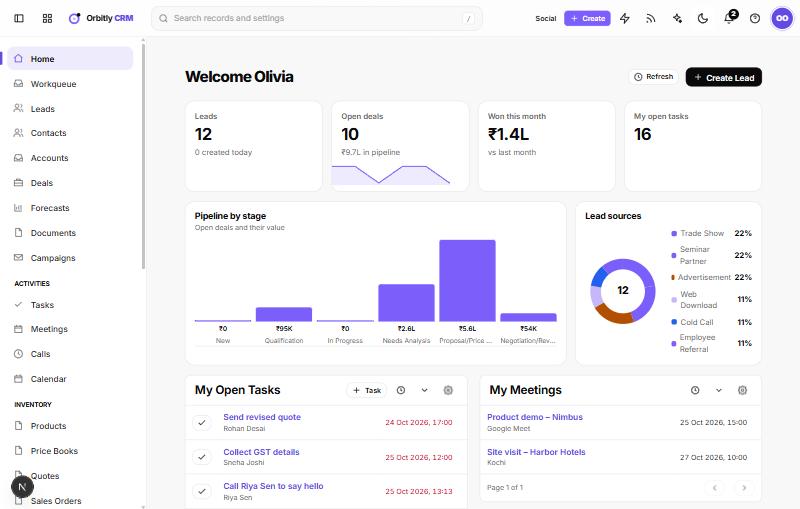
CRM opens on Home. Four numbers sit at the top: Leads, Open deals with the value in your pipeline, Won this month, and My open tasks. Below them are a Pipeline by stage chart and a Lead sources chart, followed by My Open Tasks, My Deals Closing This Month, My Meetings, Today's Leads and Signals.
Use Refresh to reload the numbers and Create Lead to add a lead straight away. On a new account, Set up your CRM lists five steps: import your leads, connect your mailbox, invite your team, create a pipeline and build a dashboard.
The sidebar
- Selling: Home, Workqueue, Leads, Contacts, Accounts, Deals, Forecasts, Documents and Campaigns.
- Activities: Tasks, Meetings, Calls and Calendar.
- Inventory: Products, Price Books, Quotes, Sales Orders, Purchase Orders, Invoices and Vendors.
- Support: Cases and Solutions.
- Engage: SalesInbox, Social, Messages, Mass email and Approvals.
- Insights: Reports, Dashboards, Agents, MCP and Import.
Settings sits at the bottom. The Create button at the top adds a lead, contact, account, deal, product, task, meeting or call from any page. Press / to search records and settings.
Your first three things to do
- Get your leads in. Add them one at a time with Add a lead, or load a file with Import records from a file.
- Turn good leads into customers. Convert a lead into an account, a contact and, if you like, a deal.
- Move deals forward. See Work your deals.
Then open Workqueue each morning to see what needs doing: see Plan your day.
Good to know
- Lists share one layout: a view picker at the top left (for example All Leads), a Filter panel, Sort, Actions for working on selected records, and a More menu with import, export and the Recycle Bin.
- Managers set sales targets in Forecasts: see Track targets with forecasts.
- Reports has ready-made reports in folders and lets you build your own with Create Report.
- To bring colleagues in, see Invite people to your organisation. What each person sees depends on their profile and role: Roles and permissions.
Was this not what you needed? Contact support or search again.