View and export entries
Find entries, filter them, move them on a board, save a view as a report and export to CSV or XLSX.
Every submission is an entry. Open a form and go to the Entries tab. The heading shows how many there are.
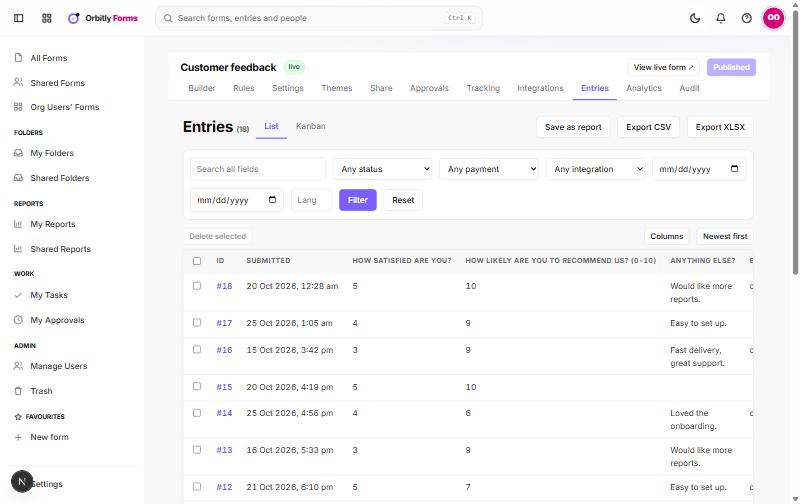
Find entries
- Type in Search all fields, or filter by status, payment, integration and dates.
- Choose Filter. Choose Reset to clear everything.
- Choose Columns to pick which fields show, and switch between Newest first and Oldest first.
- Select an entry number such as #18 to open the whole entry.
The Status menu covers entries that are submitted, pending payment, pending opt-in, in approval, approved, rejected and trashed.
Use the board
Choose Kanban to see entries in columns grouped by a dropdown or radio field. Drag a card to another column to change that answer. The button is turned off until the form has one of those fields. Use Group by to choose which field.
Save a view as a report
Set up your filters and columns, choose Save as report and enter a name. The report keeps the search, status, payment and date filters, the columns and the List or Kanban view. Pick the report from the Saved report menu later. Reports you save are also listed under My Reports in the sidebar.
Export
Choose Export CSV or Export XLSX. The file uses the search, status, payment and date filters that are applied, so choose Filter first. The integration and language filters are not used in the export.
Remove entries
Tick entries and choose Delete selected to move them to trash. Choose the trashed status in the filter to see them, and use Restore selected to bring them back.
If the page says there are no entries, make sure the form is published and shared. See Publish and share a form.
Was this not what you needed? Contact support or search again.