Get started with Forms
Learn where things are in Forms and the first three things to do to collect your first entry.
Orbitly Forms is for building online forms, publishing them, and collecting the answers as entries. You can use it for contact forms, registrations, feedback, orders and applications.
Where things are
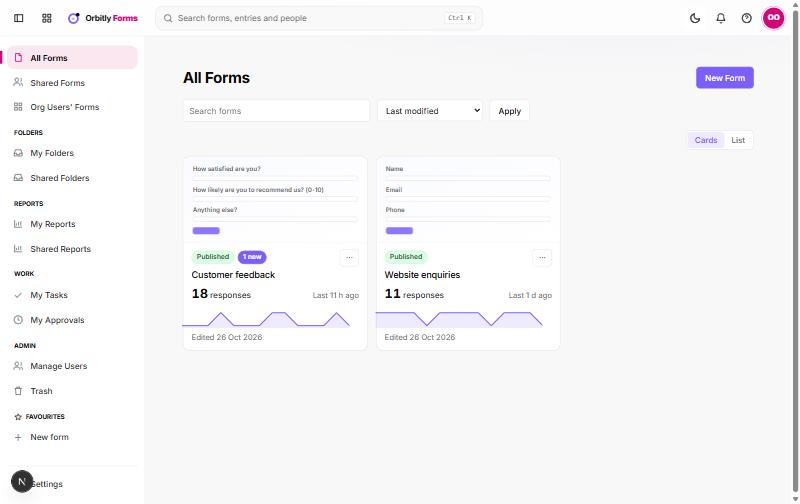
The sidebar on the home page has:
- All Forms, Shared Forms and Org Users' Forms: the forms you own, forms shared with you, and forms made by other people in your organisation.
- My Folders and Shared Folders: to group forms.
- My Reports and Shared Reports: saved views of entries.
- My Tasks and My Approvals: work waiting for you.
- Manage Users and Trash.
- New form to start a form, and Settings.
Open a form and you will see tabs across the top: Builder, Rules, Settings, Themes, Share, Approvals, Tracking, Integrations, Entries, Analytics and Audit.
Your first three steps
- Create a form. Start from a template, a blank form or an import. See Create a form.
- Build it and publish. Add and arrange fields in the builder, then choose Publish. See Build a form and Publish and share a form.
- Look at the entries. Answers appear on the Entries tab, where you can filter and export them. See View and export entries.
Other things a form can do
- Rules show or hide fields, skip pages, deny submissions and act on a submission. See Add rules to a form.
- Approvals sends entries through one or more approval levels before they count as approved. On the Approvals tab, choose Configure, tick Enabled, and add levels with + Add level. Name each level and tick its approvers; any one of them can decide. Choose Basic to send every entry through each level in order, or Advanced to make a level apply only when a choice field has a certain value. Choose Save. While approval is on, integrations run only after the final approval, and you can add a notification for "An entry is fully approved" under Settings, Email.
- Integrations can send entries to other apps or to a web address. When your setup is not connected to the other apps, the form for an app connection shows a Mock mode notice: pushes are only recorded and nothing reaches the other app. Web address (webhook) connections are not affected. Send a test entry and check it arrived before relying on an integration.
- Embed puts the form on your own website. See Embed a form on your website.
People and access
People and roles are managed once for all Orbitly apps. Manage Users is for admins only. It only lists each person's name, email, role and status, and shows how many Forms seats are used. To invite people, change roles or deactivate accounts, use Invite users in the admin console on that page. See Invite people to your organisation.
Was this not what you needed? Contact support or search again.