Create and send an invoice
Fill in a new invoice, save it as a draft or send it to your customer by email.
You can save an invoice as a draft to finish later, or send it to your customer straight away.
Create the invoice
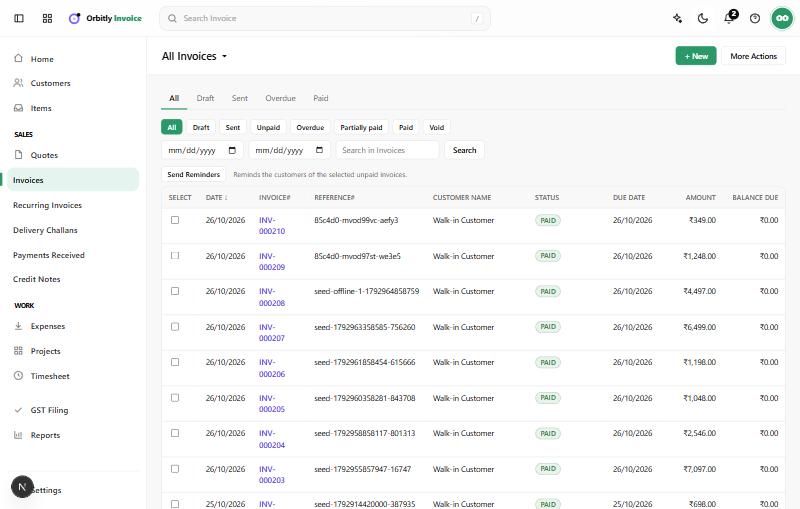
- Open Invoices and choose + New.
- Under Customer Name, pick the customer. If they are not in the list, choose + New next to it to add them in a new tab. See Add a customer.
- Check the Invoice Date, Payment Terms and Due Date. Leave Due Date empty to use the payment terms.
- In the Item Table, click Item Details and pick one of your saved items, or type a name. Set the Quantity, Rate and Tax. Choose + Add New Row for more lines.
- Add Customer Notes or Terms & Conditions if you want them to print on the invoice.
- Check the total at the bottom right.
The invoice number comes from your number series. You can type your own in Invoice# if you need to.
Save or send
At the bottom of the form you have three buttons:
- Save as Draft keeps it private. Nothing is recorded in your books yet.
- Save and Send issues the invoice, so it is recorded as sent straight away, and then opens the email form. If you leave the form without sending, the invoice stays issued but is not emailed.
- Save saves it without emailing.
In the email form, check To, Subject and Message. Attach Invoice PDF is ticked by default. Choose Send.
Send it later
Open the invoice from the Invoices list and use the buttons at the top:
- Send opens the email form. It is there on every invoice that is not void.
- Share gives you a public link to copy. It also has Share on WhatsApp and Send SMS, which send a message with the invoice link to the customer's mobile or phone number. Send SMS needs SMS notifications turned on in Settings. A message tells you if the text could not be sent.
- PDF/Print opens the invoice as a PDF.
A draft invoice shows a blue notice. You can send it, or open More and choose Mark as Sent if you sent it some other way.
Next
When the customer pays, record the payment. To change an invoice after it is sent, see Issue a credit note.
Was this not what you needed? Contact support or search again.