Getting started with Invoice
See where things are in Invoice and send your first invoice in three steps.
Invoice is for billing your customers and keeping track of who has paid. You create an invoice, send it, record the payment when it arrives, and see what is still owed.
Where things are
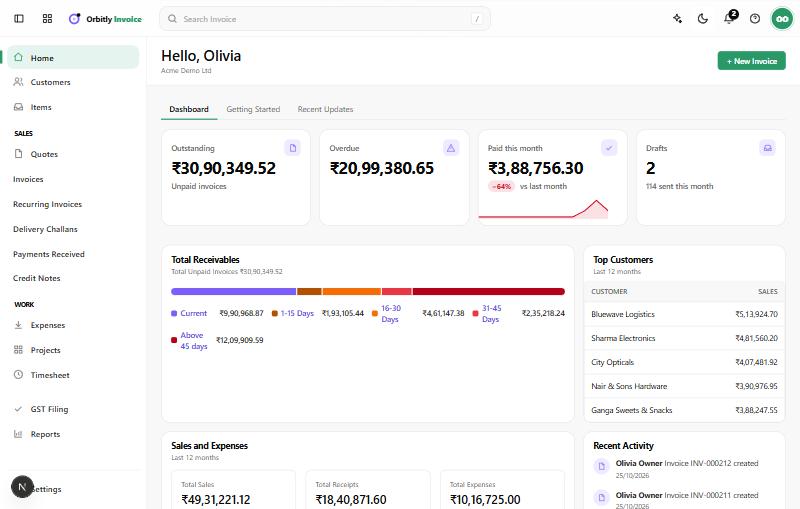
The sidebar on the left has everything you need:
- Home shows what is outstanding, overdue and paid this month. It also has a Getting Started tab with a short checklist.
- Customers and Items hold the people you bill and the goods and services you sell.
- Quotes, Invoices, Recurring Invoices, Delivery Challans, Payments Received and Credit Notes are under Sales.
- Expenses, Projects and Timesheet are under Work.
- GST Filing and Reports are below those. Settings is at the bottom.
Your first three steps
- Add a customer. Open Customers and choose + New. See Add a customer.
- Create and send an invoice. Open Invoices and choose + New. You can pick items you have saved, or type a line by hand. See Create and send an invoice.
- Record the payment. When the customer pays, record it against the invoice. See Record a payment.
Set up your business first
Open Settings and check Profile so your name and address are right on every invoice. If your business is registered for GST, add your GSTIN under GST Settings. Invoice follows the numbering in Transaction Number Series, so you can set your own prefix there.
What comes next
- Bill the same customer on a schedule: Set up a recurring invoice.
- Chase late payers: Send payment reminders.
- Correct an invoice you have already sent: Issue a credit note.
- Invite colleagues: Invite people to your organisation.
Was this not what you needed? Contact support or search again.