Collect files from other people
Make an upload link so colleagues or outside people can send files straight into a folder.
A file collection gives you a link. Anyone with the link can upload files into the folder you chose, and nobody sees anyone else's uploads.
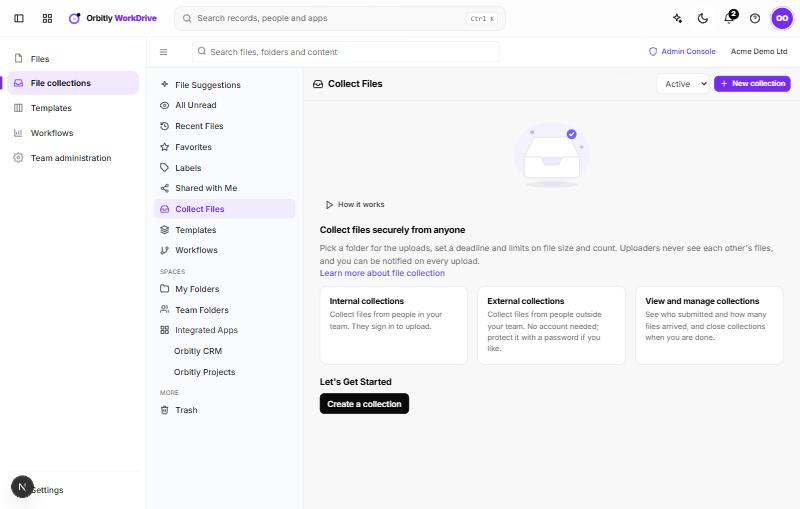
Create a collection
- Open Collect Files in the left menu and choose New collection (or Create a collection if you have none yet). You can also open a folder and choose Manage, then Collect files into this folder.
- Pick the folder where uploads should go and choose it.
- Enter a Name and, if useful, Instructions for uploaders.
- Choose who can upload:
- Anyone with the link: no account needed.
- Team members (sign in): people must be signed in to Orbitly.
- Optionally set a Deadline, Max file size (MB), Max files per person and a Password. The limit per person is counted by the uploader's email address (or their account, if signed in).
- Leave Notify me on each upload ticked if you want a notification for every upload.
- Choose Create. The upload link is copied for you.
Send the link
Paste the link into an email or message. The page shows your name, your instructions and the deadline. Uploaders from outside enter their name and email (and the password, if you set one), pick their files and choose Upload. After that they see a Thank you! page and can upload more.
Once the deadline passes, or when you close the collection, the page says it is closed and no longer takes files.
Check what has arrived
Each collection in the list shows its folder, how many people have submitted, how many files, and the deadline. Use the buttons on the right:
- Copy link copies the upload link again.
- Submissions lists each file with its size, who sent it and when. Click a file name to open it.
- Close stops new uploads. Switch the Active filter to Closed to find a closed collection, and choose Reopen to start it again.
The uploaded files are normal files in the folder you picked, so you can move, share or comment on them like any other. See Find and organise files.
Was this not what you needed? Contact support or search again.