Get started with WorkDrive
Learn where your files live and how to upload, share and find them.
Orbitly WorkDrive is where your team keeps files together. You have a private space for your own files, and shared spaces for work you do with others.
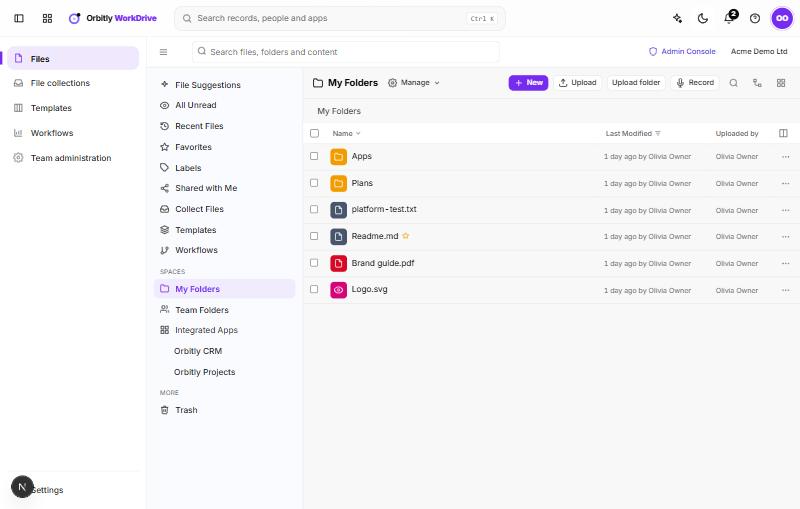
Where things are
The menu on the left has these places:
- My Folders is your own space. Only you see what is in it until you share it.
- Team Folders are shared spaces with members and roles. See Create a team folder.
- Shared with Me lists files and folders other people have shared with you. Its second tab, Shared by Me, lists what you have shared.
- Recent Files, Favorites, Labels and All Unread help you get back to things quickly. See Find and organise files.
- Collect Files gathers uploads from other people. See Collect files from other people.
- Templates and Workflows are described below.
- Trash holds deleted items. See Restore deleted files and earlier versions.
Under Integrated Apps you will see folders that other Orbitly apps created for you, grouped by app. If you are a team admin, Admin Console at the top opens the team settings.
Use the search box at the top to search file names, descriptions and the text inside files.
Your first three steps
- Upload a file or a whole folder. See Upload files and folders.
- Create a team folder for a project and add the people who work on it.
- Share a file or folder with a colleague. See Share a file or folder.
Open a file
Click a file's name to preview it. Panels on the right show Info, Comments (use @Name to mention someone), Versions, Activity and Access stats. You can download the file from the same page.
Templates
Templates has three tabs: My Templates, Org Templates and Public Templates. Choose Use on a template, give the new file a name, and WorkDrive makes a copy and opens it. To save one of your own files as a template, choose New My Template, search for the file and pick it. You can also choose Save as template in a file's More actions menu.
Workflows
A workflow sends a file to people for review or approval. A team admin sets up the workflows. To send a file, open its More actions menu, choose Send for review / approval, pick a workflow, choose who handles each stage, and choose Start. The file is locked until the workflow finishes.
Files sent to you appear under Workflows. Open one and use the Workflow panel to choose Approve, Reject, Mark reviewed or Request changes.
To add people to your organisation first, see Invite people to your organisation.
Was this not what you needed? Contact support or search again.