Upload files and folders
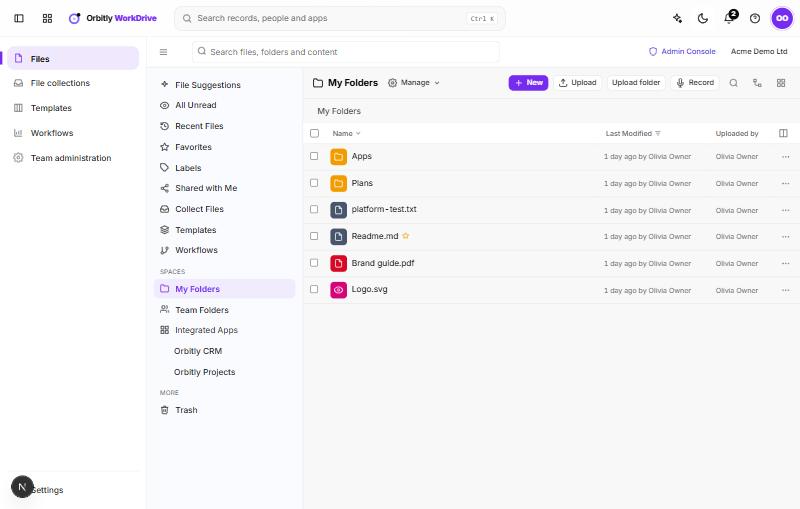
Add files from your computer, upload a whole folder, record audio or video, or start a new file.
You can add things to My Folders, or to any team folder where you are an editor or higher. Viewers and commenters do not see the upload buttons.
Upload files
- Open the folder you want to add to.
- Choose Upload and pick one or more files. Or drag files from your computer straight onto the folder page.
- Watch the progress in the upload tray at the bottom of the screen.
The tray shows each file's progress. You can pause a file, resume it, or retry one that failed. Choose the arrow to minimise the tray, and the cross to close it once uploads are complete. A file that the safety scan flags is marked Quarantined and cannot be shared.
Upload a folder
Choose Upload folder and pick a folder on your computer. WorkDrive recreates the folder structure and uploads the files into it.
Create something new
Choose New to make:
- a Folder: you are asked for a name.
- a Document, Spreadsheet or Text file: WorkDrive creates it and opens it.
- a Web link: you enter the address and a name. It is saved like a file and opens in a new tab.
- a file From template: this opens Templates, where you pick one and choose Use.
Record audio or video
Choose Record, then Video or Audio. Your recording is saved in the current folder.
Work with what you uploaded
- Tick the box next to one or more items to get a bar with Download, Move to, Copy to, Create ZIP and Delete.
- Choose the ... button on a row for Rename, Download, Share and more.
- Choose Manage columns (the columns icon at the end of the header row) to show or hide Size, Owner, Type and other columns.
- Switch between the list and thumbnails with the view button in the folder toolbar on the right.
Was this not what you needed? Contact support or search again.