Create a team folder and add members
Set up a shared space for a team or project and decide who can see and change what is in it.
A team folder is a shared space. Everything in it belongs to the team, not to one person, so it stays put when someone leaves.
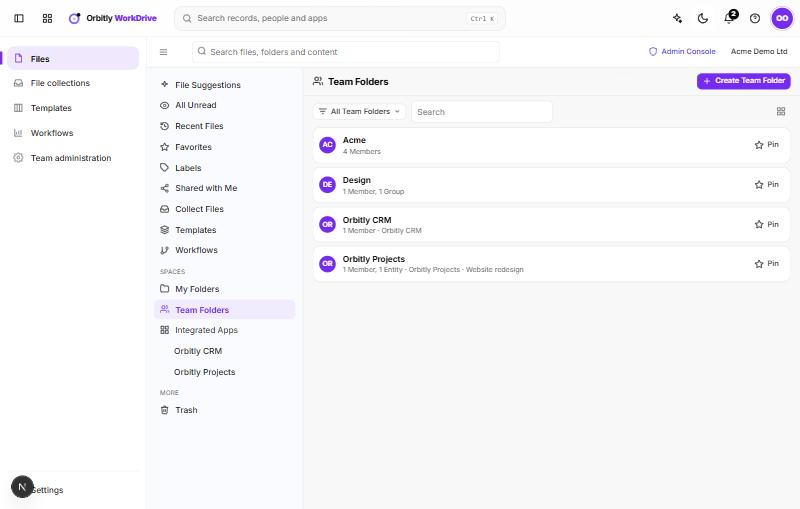
Create one
- Open Team Folders in the left menu.
- Choose Create Team Folder.
- Enter a name and choose Create. The new folder opens.
Add members
- In the team folder, choose Manage, then Team folder settings & members.
- Under Members, pick a person or group in Add a member or group.
- Choose a role.
- Choose Add.
The roles, from most to least access:
- Admin: manage members and settings, and delete permanently.
- Organizer: share, delete, manage content and view activity.
- Editor: create and edit files and see activity.
- Commenter: view and comment.
- Viewer: view and download, if downloads are allowed.
When someone is in several groups, their highest role applies. Change a role from the list, or choose Remove to take someone out. Folder admins (and team admins) can add and remove members and change settings. Organizers can add members too, but cannot give the Admin role.
Folder settings
Folder admins also see a Settings section:
- Visibility: Private, or Public so anyone in the team can join.
- Allow external sharing: whether links to people outside the team can be made for items in this folder.
- Allow downloads: when off, viewers, commenters and editors can only preview.
- Description, Duplicate structure (copies the folders and members into a new team folder), Archive and Delete team folder.
Archived folders stay readable. Team admins can restore a deleted team folder from the admin console.
Find and pin team folders
On the Team Folders page, search by name and use the filter at the top to show all folders, folders created in WorkDrive, or those created by another Orbitly app. Choose Pin on a folder to keep it near the top. Public folders you have not joined appear under Public team folders you can join, each with a Join button.
To leave a folder you do not manage, open its settings and choose Leave team folder.
See also Share a file or folder and Roles and permissions.
Was this not what you needed? Contact support or search again.