Create and send an email campaign
Build an email, choose who gets it, run the pre-send checks, then send now or schedule it.
A campaign is one email sent to the people on one or more lists. You build it in four steps, and your changes save automatically as you work.
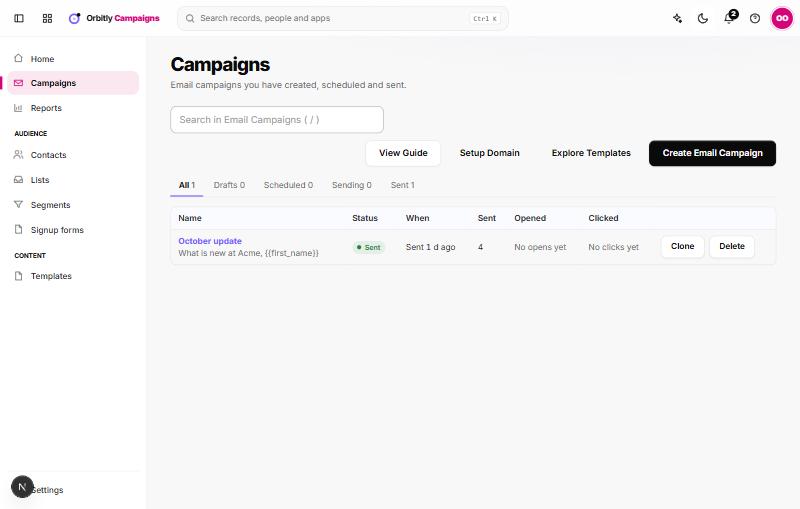
Create the campaign
- Open Campaigns and choose Create Email Campaign.
- Enter a Campaign Name. Only you and your team see it.
- Under Start from, pick a starter design, one of Your templates, or Blank email, then choose Continue.
You can also choose Explore Templates to browse designs first.
Work through the four steps
The campaign opens with four tabs.
- Details: the Subject line, Preview text, From name, From email and optional Reply-to. Merge tags such as {{first_name}} work in the subject. Track opens and Track clicks are here too. If you are short of ideas, type a topic under Need ideas? and choose Suggest subject lines.
- Recipients: tick the lists to send to. To send to only part of them, pick a segment under Only people in this segment (optional). See Create a segment.
- Content: edit the email blocks. The preview shows what is sent. An unsubscribe link and your postal address are added for you.
- Review: the checks, a test send and the send controls.
Check, test and send
On Review, under Checks, Campaigns lists what would stop or weaken the send. Items marked Fix: block sending, for example a missing subject, no sender, no postal address, no lists chosen, or nobody in the chosen lists able to receive it. Items marked Tip: are warnings, such as a very long subject. Choose Check again after you fix something.
- Under Send a test, enter up to five addresses separated by commas and choose Send test. The subject starts with [Test].
- Choose Send now, or pick a date and time and choose Schedule.
- Confirm in the box that shows how many people it goes to. You cannot edit a campaign once it starts sending.
After you send
The campaign opens its report. See Read campaign reports. On a sending campaign you can Pause it, and Resume it later. Campaigns also pauses a send by itself when more than a set percentage of messages fail. It checks this only after at least 20 messages. You set the percentage under Settings, Compliance.
On the Campaigns page, Clone copies a campaign into a new draft and Delete removes it. A campaign that is sending cannot be deleted.
Was this not what you needed? Contact support or search again.