Add and assign tasks
Add tasks to a project, give them an owner and a due date, and tick them off.
Tasks are the steps of a project. You can add one in a few seconds, then fill in the detail when you need it.
Add a task quickly
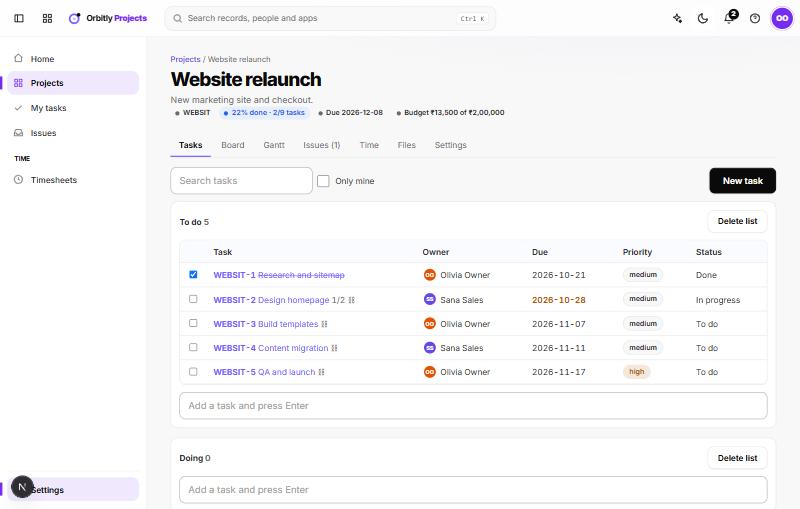
- Open a project. The Tasks tab shows your lists, such as To do and Doing.
- Click the box that says Add a task and press Enter under a list.
- Type the title and press Enter.
Add a task with more detail
- Choose New task at the top right of the Tasks tab.
- Enter a Title and a Description.
- Under Assigned to, choose the person who owns it. The list shows people in your organisation.
- Set Status, Priority (low, medium, high or urgent), a List, and an Estimate (hours).
- Set Start and Due dates.
- Choose Create.
Click any task title to open it again and change these fields, then choose Save.
Subtasks, waiting, comments
Open a task to find more:
- Subtasks. Type in Add a subtask and press Enter. Tick each one off as it is done. The parent task shows how many are done.
- Waits for. Choose another task that has to finish first. If this task would start too early, Projects pushes it later and tells you which tasks moved.
- Comments. Write a comment and choose Post.
- Log time. Enter hours and choose Log for today.
Tick it off
Use the checkbox at the start of a task row to mark it done. Untick it to reopen. A due date shows red when it is past and amber when it is within a week.
Organise lists
Type a name into New task list and choose Add list to make another list. Delete list removes a list but keeps its tasks, which then show under No list.
Find tasks
- Search tasks filters by reference or title.
- Only mine shows tasks assigned to you.
- My tasks in the sidebar shows everything assigned to you across all projects.
Next: Use the board.
Was this not what you needed? Contact support or search again.