Create a project
Start a project, set its dates and budget, and add the people who work on it.
A project is the home for one piece of work. You can set dates and a budget when you create it, and change them later.
Create it
- Open Projects and choose New project.
- Enter a Name. You can add a Description too.
- Set Start and End dates if you know them. The end date cannot be before the start date.
- If you want to watch cost, enter a Budget (rupees) and a Cost per hour (rupees).
- Under Who can see it, choose Everyone in the organisation or Only its members.
- Choose Create project.
You become the project's manager, and the project opens with three task lists: To do, Doing and Done. Each task gets a short reference built from the project name, such as the one you see in the project header.
Add people
People must already be in your organisation. To bring someone new in, see Invite people to your organisation.
- Open the project and choose the Settings tab.
- Under Members, pick a person in Add a person....
- Choose a role: Manager, Member or Viewer.
- Choose Add.
Managers can change a person's role or Remove them at any time. If the project is Only members, people who are not on the list cannot see it.
Budget and cost
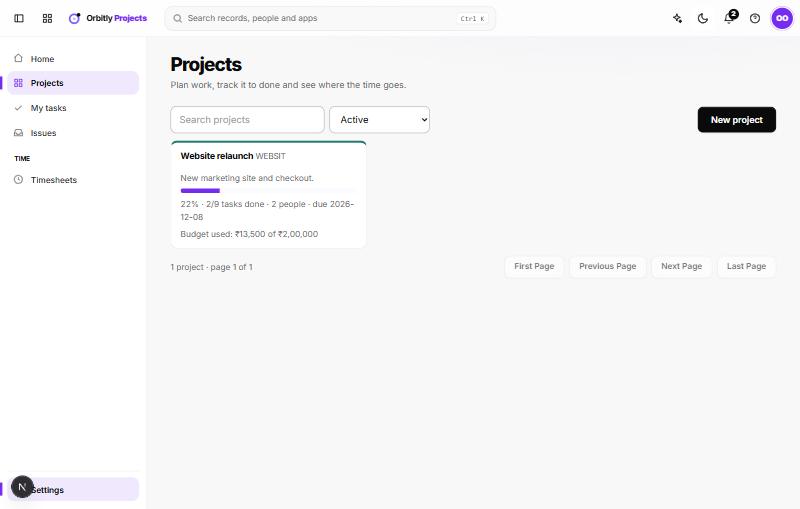
Cost is worked out from the hours logged multiplied by the Cost per hour. On the Time tab you see hours logged, the cost, and how much of the budget is used. The project card on the Projects list shows Budget used. Only submitted and approved time counts. See Log time and submit timesheets.
To change the budget, dates, status or visibility, edit the fields in Settings and choose Save. A project's status can be Active, On hold, Completed or Archived.
Find your projects
The Projects page has a search box and a status filter that starts on Active. Each card shows progress, overdue tasks and the due date.
Next: Add and assign tasks.
Was this not what you needed? Contact support or search again.