Getting started with Projects
Learn where things are in Projects and set up your first project in three steps.
Projects is for planning work and seeing how it is going. A project holds task lists, tasks, issues, time and files, so your team can see who is doing what and by when.
Where things are
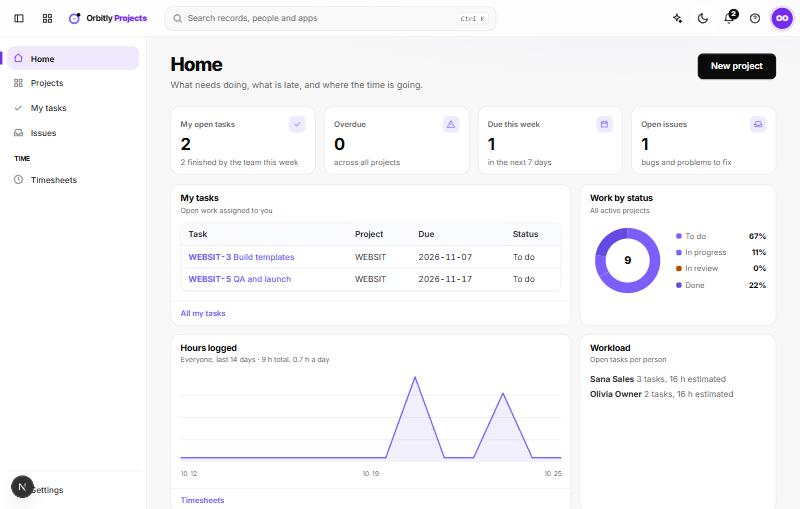
The sidebar has five places:
- Home shows your open tasks, what is overdue, what is due this week, open issues, and hours logged over the last 14 days.
- Projects lists every project you can see, with progress for each.
- My tasks lists everything assigned to you that is not finished, grouped as Overdue, Due this week, and Later or no date.
- Issues lists bugs and problems across all your projects.
- Timesheets is where you log hours and submit your week.
Your first three steps
- Create a project. Open Projects and choose New project. See Create a project.
- Add tasks. Break the work into tasks with owners and due dates. See Add and assign tasks.
- Log your time. Record hours on tasks, then submit the week. See Log time and submit timesheets.
The Get started with Projects checklist on Home ticks these off as you go.
Inside a project
Each project has these tabs: Tasks, Board, Gantt, Issues, Time, Files and Settings.
- Use the board to move work through stages.
- Use the Gantt chart to see dates and dependencies on a timeline.
- Use Track issues for bugs and problems.
Who can do what
Only people with permission to manage projects see New project. Inside a project, people have a role of Manager, Member or Viewer. Viewers can look but not change anything. See Roles and permissions, and Invite people to your organisation to bring in your team.
Was this not what you needed? Contact support or search again.