Connect Google, Microsoft and social accounts
Let Orbitly apps use your accounts at other services, with tokens kept encrypted.
Some apps work with accounts you already have, for example posting to a social channel or reading a calendar. You connect those accounts once, in one place, and every Orbitly app that needs them can use the connection.
The admin console has a Connected accounts page for this. You need the connections permission, which owners and admins have.
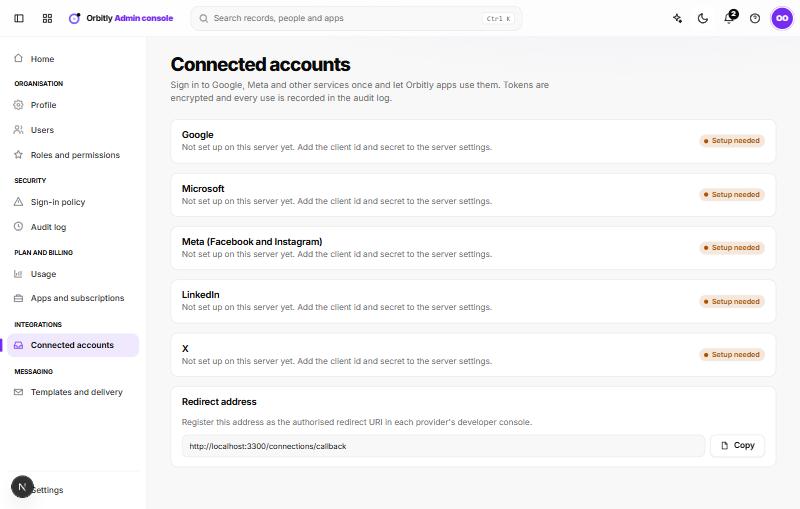
Connect an account
- Open Connected accounts. The services listed are Google, Microsoft, Meta (Facebook and Instagram), LinkedIn and X.
- Choose Connect next to a service and sign in there. You come back to Orbitly with the account connected. To connect a second account for the same service, choose Add another.
If you see "Setup needed"
It means the service has not been configured for your Orbitly environment yet (its client id and secret are added in the server settings), so the button is not available. Contact support and tell us which service you need.
What happens to the tokens
Access tokens are encrypted. Every time an app uses a connection, it is recorded in the Audit log, so you can see which app used which account and when.
Sign in again, or disconnect
If a connection stops working, for example because you changed the password at the other service, it shows a status and a Sign in again button. Each connection also has Disconnect, which asks you to confirm. Apps that used it stop working with that account until you connect again.
Was this not what you needed? Contact support or search again.