Turn on two-step verification
Ask everyone in your organisation for a code from an authenticator app as well as a password.
Two-step verification means a password alone is not enough. After the password, people enter a 6-digit code from an authenticator app on their phone.
Require it for your organisation
- In the admin console open Sign-in policy.
- Switch on Require two-step verification. The page tells you how many people have it and how many would be asked to enrol.
- Everyone without it, including you, is sent to set it up the next time they open an Orbitly app.
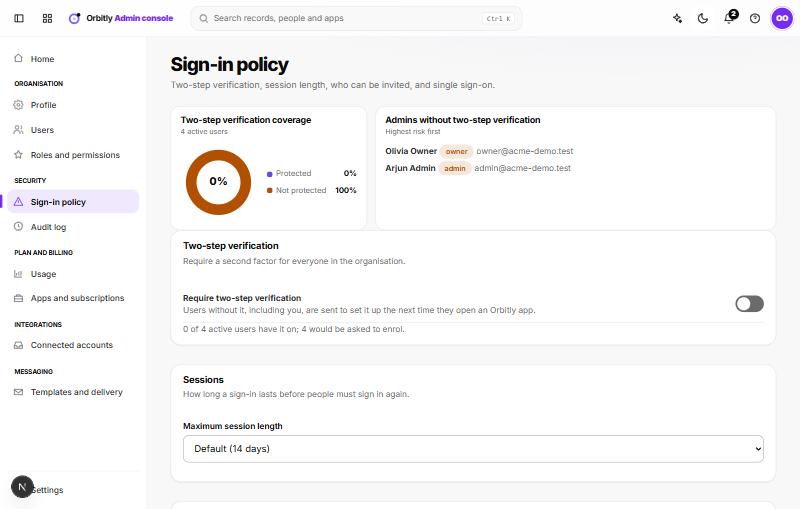
The page also shows the admins who do not have it yet, highest risk first. Turn it on for admins and owners before anyone else.
Set it up as a person
When prompted, scan the code with an authenticator app, then enter the 6-digit code it shows to confirm. From then on, signing in asks for a code after the password.
Lost your phone?
An admin can reset two-step verification for you: on Users they choose Reset 2-step on your row and confirm. You are signed out everywhere and set it up again with the new phone. If you are the only owner, contact support from the Help Center.
Was this not what you needed? Contact support or search again.